Help / TheyRave Broadcasting Studio
Sign in with Twitch
Connect TRBS to your Twitch account so it can set your stream title and category and type in your chat.
Signing in lets TRBS change your stream title and category on Twitch and send chat messages for you. The Alerts layer needs it too. Streaming itself uses a stream key instead, which Go live on Twitch and other sites covers.
Sign in
In the Twitch box under Live, press Sign in with Twitch.
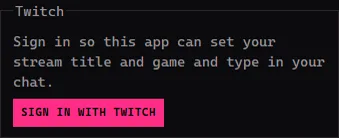
TRBS shows a short code, and Twitch opens in your browser.
Check the code in your browser matches the one in TRBS, then press Authorize on the Twitch page.
Go back to TRBS. The box now says you are signed in, with your Twitch name.
If you closed the browser tab by mistake, press Open Twitch again. To stop halfway, press Cancel.
Set your title and category
Once you are signed in, two fields appear in the same box.
- Type your stream's name in Stream title.
- Start typing in Category, for example Just Chatting, and pick the right one from the list that drops down.
- Press Save to Twitch. The box says Saved on Twitch. when it worked.
To leave, press Sign out.
If something goes wrong
- Twitch did not open. Press Open Twitch again. If still nothing opens, check Windows has a default browser set.
- The category is not found. TRBS says Twitch has no category with that name. Try a shorter word, such as the first word of the game.
- The code ran out. Press Cancel, then Sign in with Twitch again for a fresh code.