Help / TheyRave Broadcasting Studio
Scenes, layers and transitions
Set up the different screens your stream switches between and stack things on each one.
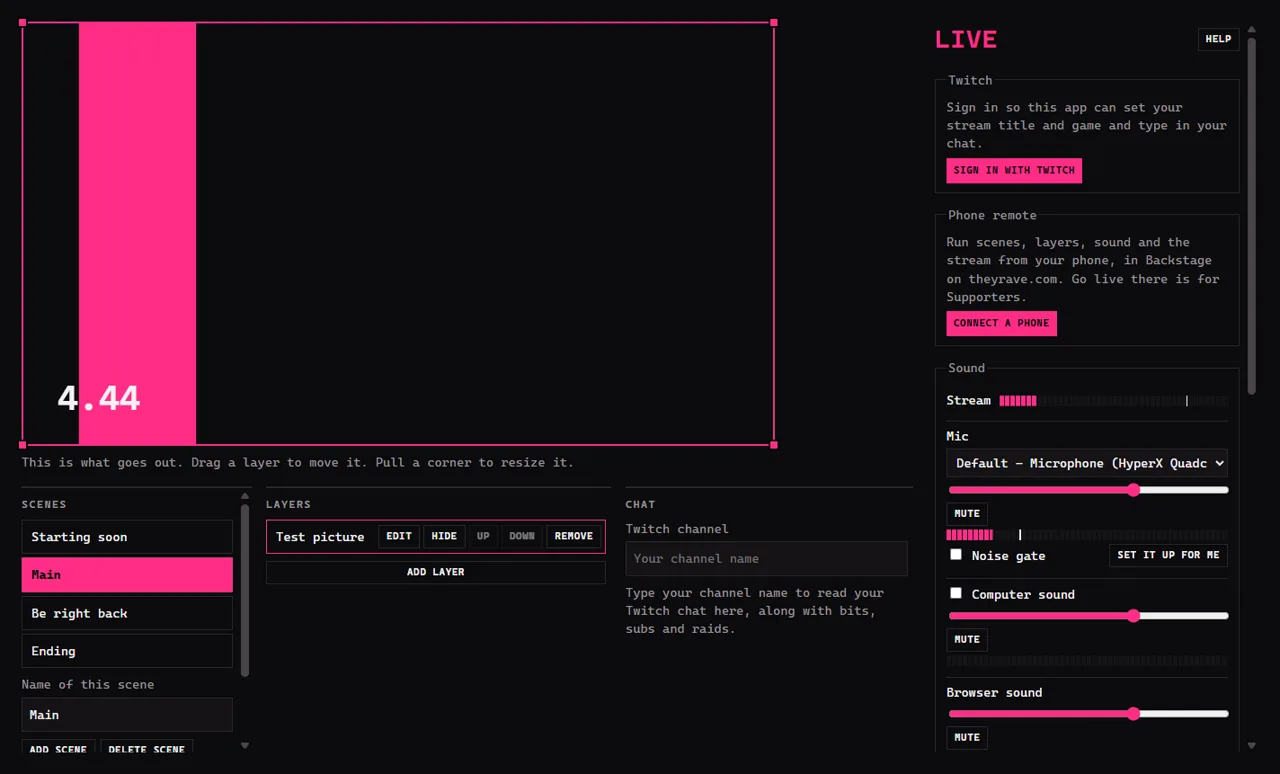
A scene is one full screen your viewers can see, such as your game with your camera in the corner, or a Be right back screen. A layer is one thing placed in a scene, like your camera or a picture. Layers stack, so a layer higher in the list sits on top of the ones below it.
Scenes
TRBS starts with four scenes under Scenes: Starting soon, Main, Be right back and Ending.
- Click a scene in the list to switch to it. The picture changes straight away, and if you are live, viewers see the change too.
- To make a new one, press Add scene.
- To rename the scene you are on, type in Name of this scene.
- To get rid of the scene you are on, press Delete scene.
Layers
Each scene has its own layers, listed under Layers.
- Press Add layer and pick what to show. Add your camera, game, screen or a picture explains each choice.
- Drag a layer in the picture to move it. Pull one of its corners to make it bigger or smaller.
- Each layer in the list has buttons beside its name:
- Edit opens its settings, such as size, crop and how it looks.
- Hide takes it off the picture without deleting it. Show brings it back.
- Up and Down move it above or below other layers.
- Remove deletes it from this scene.
You can also right-click a layer in the picture for Bring forward, Send back and Reset size and position.
Transitions
A transition is what viewers see while you switch scenes.
- Under Scenes, open Transition and pick Cut for an instant switch or Fade for a smooth one.
- With Fade, set how long it takes in Duration in ms. 1000 is one second.
If something goes wrong
- A layer is missing from the picture. If its button says Show, the layer is hidden: press it. If it says Hide, a bigger layer may be covering it, so press Up.
- I added a layer to the wrong scene. Layers go into the scene that was selected when you added them. Click the right scene first, then add it again there.