Help / TheyRave Broadcasting Studio
Add your camera, game, screen, a picture or a video
Put your webcam, a game or capture card, your screen, one window, a picture or a video file into a scene.
Everything viewers see comes from layers you add to a scene. This page covers the ones most people start with.
Before you start: click the scene you want them in, under Scenes. See Scenes, layers and transitions.
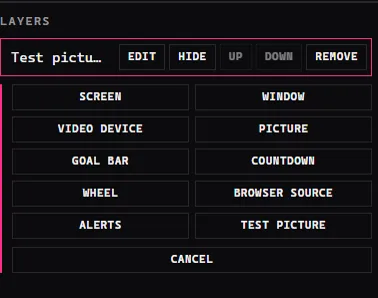
Press Add layer under Layers to see the choices.
Your camera
- Press Video device.
- Pick your webcam in the list.
- Press Add this device.
A console game or capture card
A capture card is a small box or card that brings a console's picture into your PC. TRBS treats it as a video device, like a webcam.
- Press Video device.
- Pick the capture card in the list, then press Add this device.
- In the Sound box, check the capture card is picked under Device sound, so the game sound goes out too. TRBS tries to pick it for you.
A PC game, your screen, or one window
- Press Screen to show a whole monitor, or Window to show one program, such as a game.
- Click the one you want in the list that appears. If it is not there, press Refresh list.
Window is the safer choice. With Screen, viewers see everything on that monitor, including messages that pop up.
A picture
- Press Picture.
- Pick the image file on your PC.
A video file
A looping clip, such as a starting soon or be right back screen.
- Press Video file.
- Pick the video on your PC. MP4, WebM, MKV and MOV work. TRBS keeps its own copy, so you can move or delete the original.
The video loops for as long as a scene holds it. Its sound is heard only while its scene is on and the layer is shown, on the Video sound row. If an MKV says it could not be played, open OBS, pick File, then Remux Recordings, and add the MP4 it makes.
Change the size or crop
Press Edit beside the layer. Under Position and size, Fit to screen shows the whole layer and Fill screen covers the picture with it. Crop trims its edges, and Reset crop undoes that.
To close the choices without adding anything, press Cancel.
If something goes wrong
- The camera list says No video device found. Plug the camera in and close any other app using it, such as Discord. Then press Add layer again.
- A window shows black. Some games need to run in windowed or borderless mode. Change that in the game's video settings, or use Screen instead.
- The game makes no sound on stream. For a capture card, check Device sound. For a PC game, tick Computer sound. See Sound: mic, mute and the noise gate.