Help / TheyRave Broadcasting Studio
Browser sources and alerts from other sites
Show any web page on stream, such as an alert box from StreamElements or Streamlabs.
A browser source is a web page shown as a layer. Sites like StreamElements and Streamlabs give you an address for your alerts or a chat box, and TRBS shows that page on top of your stream. If you would rather not use another site, TRBS has its own Alerts layer.
Before you start: copy the address from the other site. On StreamElements and Streamlabs it is the overlay or widget link, usually behind a button that says copy.
Add one
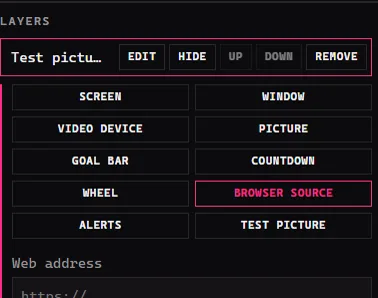
- Under Layers, press Add layer, then Browser source.
- Paste the address into Web address.
- Leave Page width and Page height at 1280 and 720 unless the other site tells you a size.
- Press Add browser source.
The page's sound goes into the stream under Browser sound in the Sound box. Turn it up or down there, or press Mute beside it.
Test it
Most alert sites have a test button on their own page. Press it there, and the alert should play in the TRBS picture.
If something goes wrong
- The layer is empty. Check the address was pasted whole. Most of these pages are see-through until an alert plays, so an empty layer is normal between alerts.
- The alert plays but makes no sound. Look at Browser sound in the Sound box: it may be muted or turned all the way down.
- The page looks cut off. Press Edit on the layer and set the size the other site asks for.