Help / TheyRave Broadcasting Studio
The Alerts layer and its three styles
Play an alert on stream when someone follows, subscribes, gifts subs, cheers bits or raids you, without another site.
An alert is the short animation that plays on stream when something happens on your channel, like a new follower. The Alerts layer is built into TRBS, so you do not need StreamElements or Streamlabs for it.
Before you start: sign in with Twitch. That is how TRBS hears about your follows and subs.
Add it
- Under Layers, press Add layer, then Alerts.
- Press Edit beside the new layer.
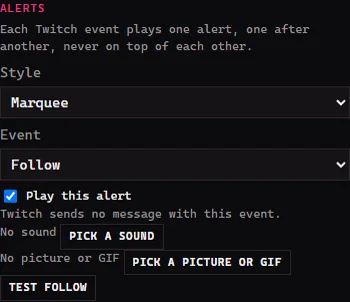
Each Twitch event plays one alert, one after another, never on top of each other.
Pick a style
Open Style and choose Marquee, Neon sign or Backstage pass. The style is the look of every alert on this layer. The quickest way to choose is to pick one, press a test button (below), and watch it play in the picture.
Set up each event
- Open Event and pick one: Follow, Sub, Resub, Gift subs, Bits or Raid.
- Tick Play this alert to switch it on. Untick it to stay quiet for that event.
- For Resub and Bits, which can carry a message from the viewer, you can tick Show the viewer's message and Read the message aloud.
- Press Pick a sound to play your own sound file with it, and Pick a picture or GIF to add an image. Remove sound and Remove picture or GIF take them off again.
- Press the test button, such as Test follow, to see it play in the picture.
Repeat for each event you want.
If something goes wrong
- The test does nothing. TRBS says the alert is switched off. Tick Play this alert, then test again.
- Real follows do not show. Check you are signed in with Twitch and that the layer is not hidden. Its button should say Hide, not Show.
- No sound plays. Check Browser sound in the Sound box is not muted.