Help / TheyRave Broadcasting Studio
Chat and the pop-out
Read your Twitch chat inside TRBS, send messages, and pop chat out into its own window.
TRBS can show your Twitch chat next to your picture, so you do not need a browser tab open while you stream.
Read chat
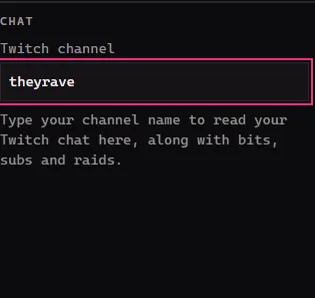
- Under Chat, type your channel name in Twitch channel.
- Messages start to appear below it, along with bits, subs and raids.
Send a message
Sign in with Twitch first. A Send a message box then appears under the chat. Type, and press Enter to send.
See who is watching
Once you are signed in with Twitch, a button beside Chat shows how many people are watching, such as 12 viewers, or Offline when you are not live. It updates every 30 seconds.
Press it to see who is in your chat, A to Z. Twitch only names people connected to chat, so the list is often shorter than the viewer count. Viewers who are logged out never show up in it. Press anywhere else, or Escape, to close it.
Pop it out
Press Pop out beside Chat to open chat in its own window. You can drag that window to a second monitor or make it bigger. The button shows once a channel name is typed in.
If something goes wrong
- No messages show. Check the spelling of the channel name, and that you are online. A quiet channel may simply have no new messages yet.
- There is no box to send a message. You are not signed in with Twitch.
- The viewer list asks you to sign in again. Your Twitch sign-in is from before the list existed. Press Sign out, then Sign in with Twitch, and press Authorize on Twitch once more.
Next: Make a layer look better.