Help / TheyRave Broadcasting Studio
Make a layer look better
Brighten, warm up or clean up your camera with the Look sliders, Fill light, Noise cleanup and Fix it for me.
Each layer has its own look settings, and which ones you see depends on what the layer shows. A camera gets all of them, since a dark room, a gray picture or a grainy image can all be helped here without buying new lights. A screen, window, picture or video file gets Brightness, Contrast and Saturation. A goal bar, countdown, wheel, alerts or browser source draws its own colors, so it gets only Opacity, Rounded corners and Border.
Before you start: press Edit beside the layer you want to change.
The Look sliders
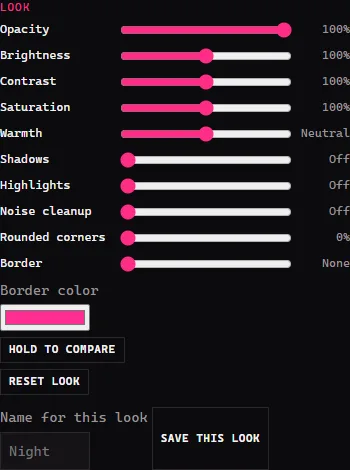
- Brightness and Contrast make the picture lighter or punchier.
- Saturation makes colors stronger, or grayer if you drag it left.
- Warmth makes the picture more orange or more blue. Camera only.
- Shadows lifts dark areas. Highlights pulls back parts that are too bright. Camera only.
- Shine takes out glare: a white spot from a ceiling light on your hair, forehead or nose. It fills the spot with the color around it and leaves evenly bright areas alone. Start around 60. Camera only.
- Opacity makes the whole layer see-through.
- Rounded corners, Border and Border color frame the layer.
Hold Hold to compare to see the layer without your changes. Reset look puts every slider back.
To keep a look you like, type a name in Name for this look and press Save this look. It then shows as a button you can use on any layer.
Fill light
Fill light finds your face and lights it, like a lamp in front of you. Drag it up until your face looks right. It shows on cameras only.
Noise cleanup
Noise is the fuzzy grain a webcam makes in a dim room. Drag Noise cleanup up until it goes, but not so far that your face looks smooth like wax. It shows on cameras only.
Fix it for me
Under Assistant, press Fix it for me. It measures your camera's picture on your PC and sets Brightness, Contrast, Saturation, Warmth, Shadows, Highlights and Noise cleanup from what it finds, much as a phone camera adjusts itself. Nothing is sent anywhere.
- It judges brightness and color on your face, so a colorful wall or hair does not throw it off. With no face in the picture it leaves Warmth alone.
- Each slider moves only as far as the picture needs. A picture that already looks right is left alone.
- It always measures the picture before your color settings, so pressing it twice gives the same answer.
- Fill light and Shine are left as you set them.
Tick Offer a fix when the light changes and TRBS asks when your room gets much darker, brighter or warmer, such as when the sun goes down.
If something goes wrong
- The picture looks washed out. Press Reset look and change one slider at a time.
- Fill light does nothing. It needs to see a face. Check the camera shows yours clearly.